

Overview
This document outlines the technical process for integrating WhatsApp Business with Zoho CRM. The objective is to automate lead capture from incoming WhatsApp messages. This system ensures data entry occurs without manual intervention while staff are engaged in field operations. Amaryllis Digital Studio provides implementation support for these systems as part of its lead management services.
Prerequisites
Integration requires specific administrative accounts and status verifications. Failure to meet these requirements will prevent successful connection.
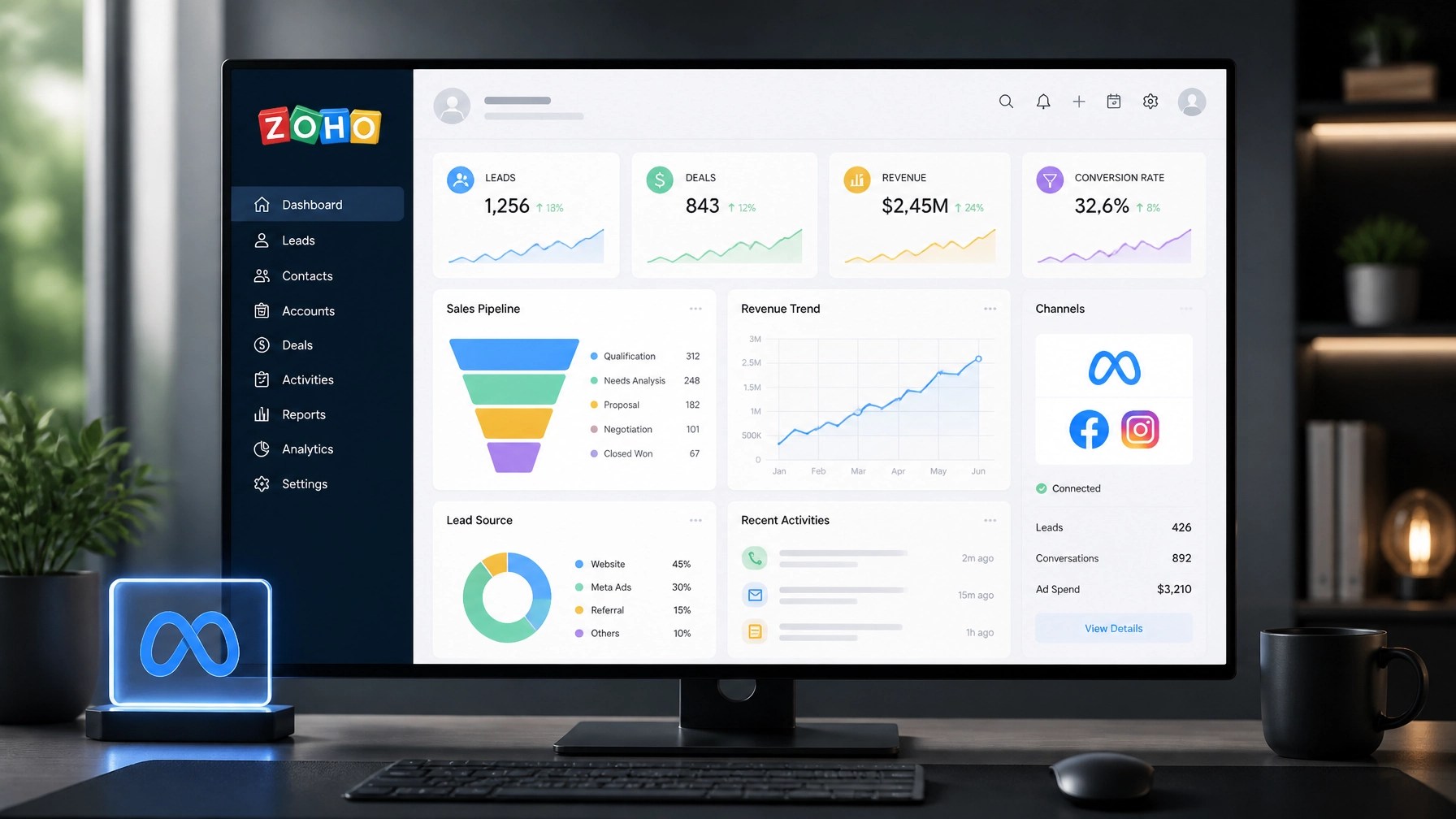
Required Accounts
- Zoho CRM: A paid subscription is mandatory. Standard, Professional, Enterprise, or Ultimate tiers support WhatsApp integration.
- Meta Business Manager: A verified Facebook Business Manager account is required to host the WhatsApp Business API.
- WhatsApp Business Account (WABA): A dedicated account within the Meta ecosystem.
- Designated Phone Number: A number that can receive a verification code via SMS or voice call. This number must not be linked to an existing personal WhatsApp account.
Phase 1: Native Integration Setup
The native integration connects the WhatsApp API directly to the Zoho CRM interface. This enables messaging and record creation within the CRM environment.
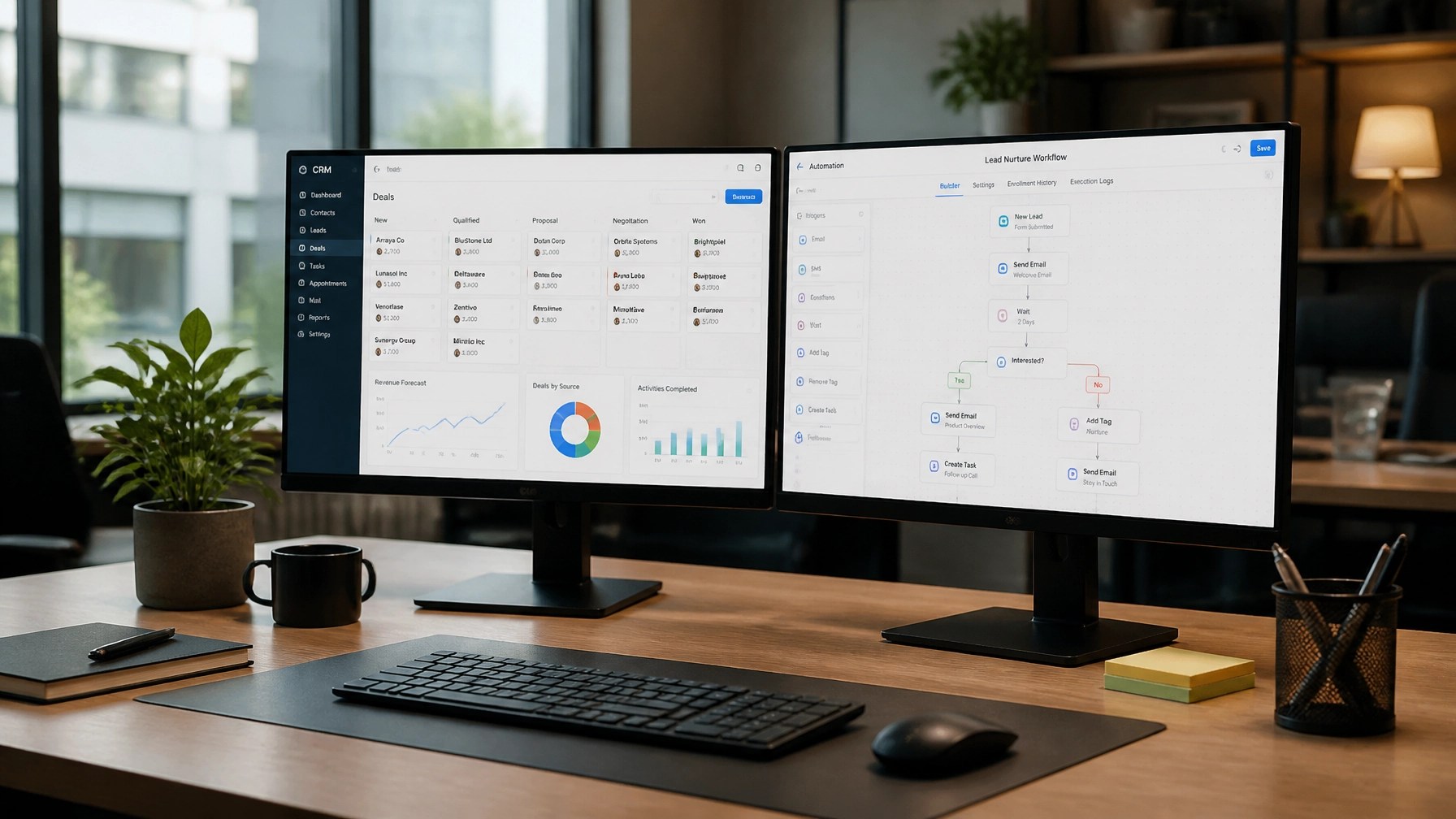
Implementation Steps
- Access Settings: Authenticate into Zoho CRM with administrative privileges. Navigate to Setup.
- Locate Channels: Select Channels under the communication section. Select Business Messaging.
- Initiate WhatsApp Connection: Locate the WhatsApp section. Click Details and then Integrate.
- Meta Authentication: Select Get Started. A popup will request login credentials for the Meta Business Manager. Provide credentials and authorize Zoho to access the WhatsApp Business account.
- Profile Selection: Select the specific Facebook Business Account and the WhatsApp Business Profile to be used.
- Number Verification: Select the designated phone number. Follow the prompts to receive and enter the 6-digit verification code.
- Profile Nickname: Assign a unique nickname to the profile within Zoho CRM for internal identification.
Phase 2: Configuration for Lead Capture
Once the connection is established, the system must be configured to convert incoming messages into lead records automatically.
Operational Settings
- Preference Selection: Within the WhatsApp configuration screen, locate Account Preferences.
- Lead Creation: Set the "Choose add as" toggle to Leads. This ensures every new phone number that messages the business is indexed as a new lead.
- Lead Assignment: Define the Assignment rules. Select specific users or use a round-robin system to distribute new WhatsApp leads to the sales team.
- Lead Source Mapping: Configure the system to automatically tag the Lead Source as "WhatsApp." This allows for accurate ROI tracking in digital marketing reports.
- Save Configuration: Click Save to apply these operational rules.
Phase 3: Workflow Automation
Integration alone is insufficient for lead management. Automated workflows must be established to provide immediate responses to potential customers.
Message Templates
- Template Creation: Navigate to Setup > Automation > Actions > WhatsApp Templates.
- Mandatory Fields: Templates must include a name, category (Marketing or Utility), and language.
- Meta Approval: All templates must be submitted to Meta for approval. This process typically takes 1 to 24 hours.
- Variable Use: Use merge fields (e.g.,
${Leads.First Name}) to ensure messages appear personalized while remaining automated.
Workflow Rules
- Trigger: Set the trigger to "On Record Creation" in the Leads module.
- Condition: Set the condition to "Lead Source is WhatsApp."
- Action: Assign an Instant Action to send a pre-approved WhatsApp greeting template. This ensures the lead receives a response within seconds of their initial inquiry.
Phase 4: Advanced Data Capture (Chatbots)
For complex service providers, simple lead creation may not capture sufficient data. Third-party integrations like Pabbly or specialized chatbot tools can be utilized to gather structured information.

Implementation of Structured Capture
- External Connector: Utilize tools like Pabbly Connect to link a WhatsApp chatbot (e.g., Wati, Picky Assist) to Zoho CRM.
- Data Mapping: Define specific fields such as "Budget," "Service Type," and "Location." Map these chatbot responses to corresponding custom fields in the Zoho CRM Lead module.
- Field Population: The connector pushes this structured data into Zoho CRM, creating a comprehensive profile before a human staff member reviews the lead.
Technical Maintenance
System health must be monitored to ensure continuous lead capture.
- API Limits: Monitor WhatsApp Business API message limits to prevent service interruptions.
- Payment Status: Ensure the Meta payment method is valid to cover per-conversation charges.
- Token Expiration: Periodically verify the connection status in Zoho CRM to ensure the authentication token remains active.
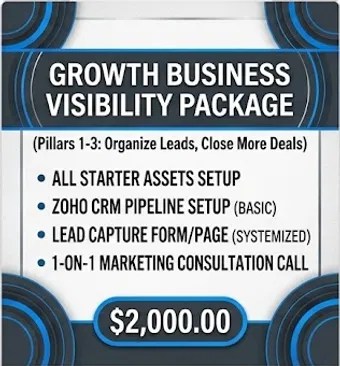
Automate your lead flow with our Growth Visibility Package
Summary
Integrating WhatsApp with Zoho CRM automates the initial phase of the sales cycle. This system converts messaging traffic into actionable data. Small businesses requiring professional implementation of these systems can review Amaryllis Digital Studio packages for fixed-price setup options.
Leave a Reply